1. Installing XAMP or WAMP Server
- Install the XAMP or WAMP server on your system. Download XAMP using https://www.apachefriends.org/download.html
- Download any version of XAMP higher than 5.4 PHP.
2. Installing Composer
- The first thing we need is to install composer. If you are new to the PHP development, then composer might be new for you. Composer is tool for dependency management in PHP, like in Visual Studio nuget package manager is used to install any package for your project.
- To install composer to http://getcomposer.org and download the windows installer version of it. Direct download link if required – https://getcomposer.org/Composer-Setup.exe
- After the download starts installing it. While installing you will see the following image.
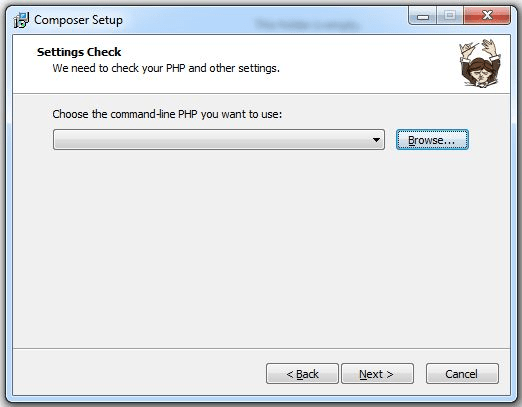
You must browse the php.exe location which might be present at this location C:\xampp\php\php.exe if you have installed XAMP.
4. Click Next and proceed with further installation.
3. Installing Laravel 5
- To install Laravel, we will be using composer command.
- Navigate to the folder where you want to create your project. I am creating my project folder in D:\Projects\FirstProject
- Hold the Shift key and press Right Click on the mouse on the folder.
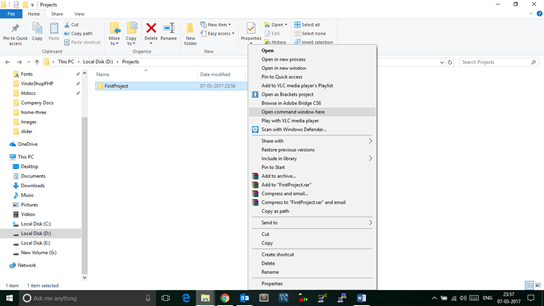
4. Click on Open command window here. It will open command window with something like this.

5. Type following command to install Laravel composer global require “laravel/installer”
This will download some files from internet to your machine. It will take some time depending on your internet connection.
NOTE- This command you should enter only once in one machine. Next time if you want to create any project on the same machine, just skip this step as Laravel will already be installed.
- To create project type following command laravel new learningLaravel
- It will take some time depending on your internet connection speed. If your new project is created properly you will something like this.

- Once the project is created successfully navigate to your project folder using the command cd. In my case, it will be cd learningLaravel
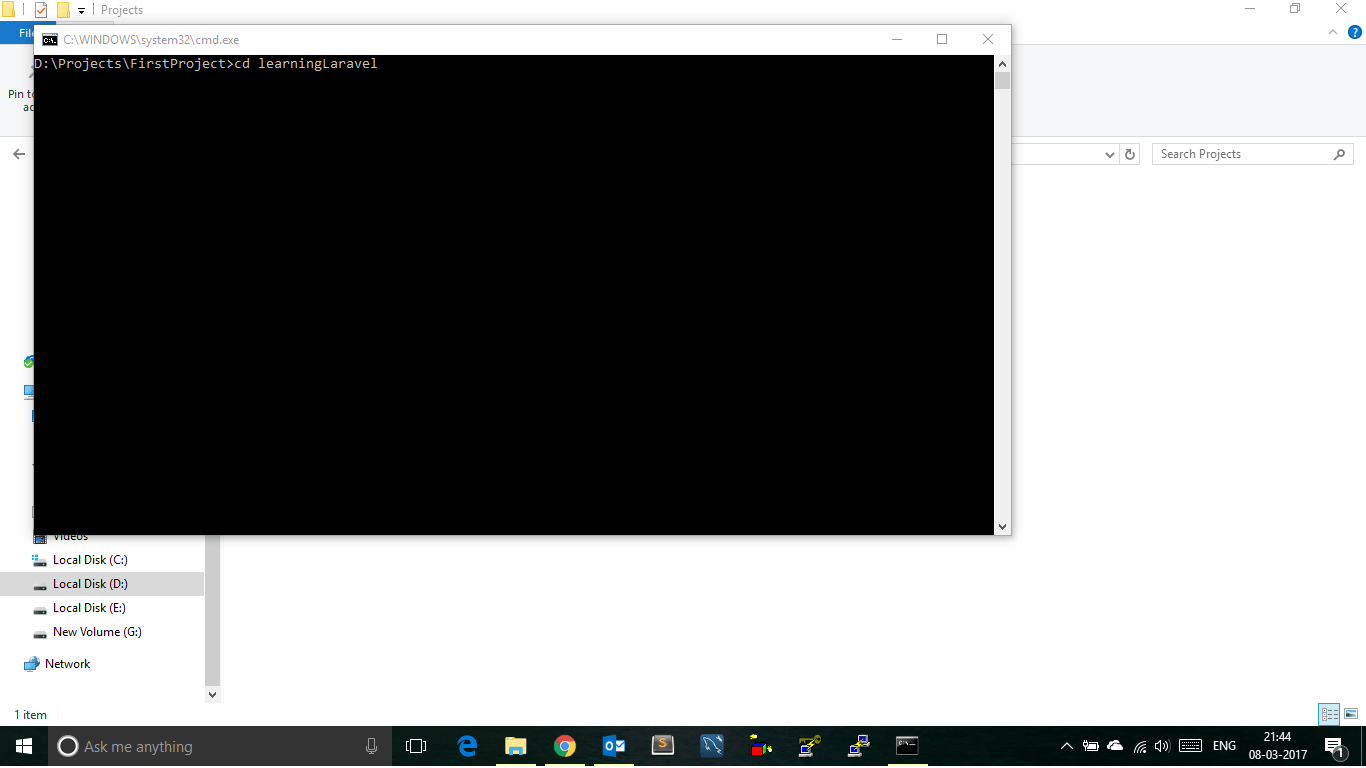
- Once you are inside your project folder type following command to run your project php artisan serve
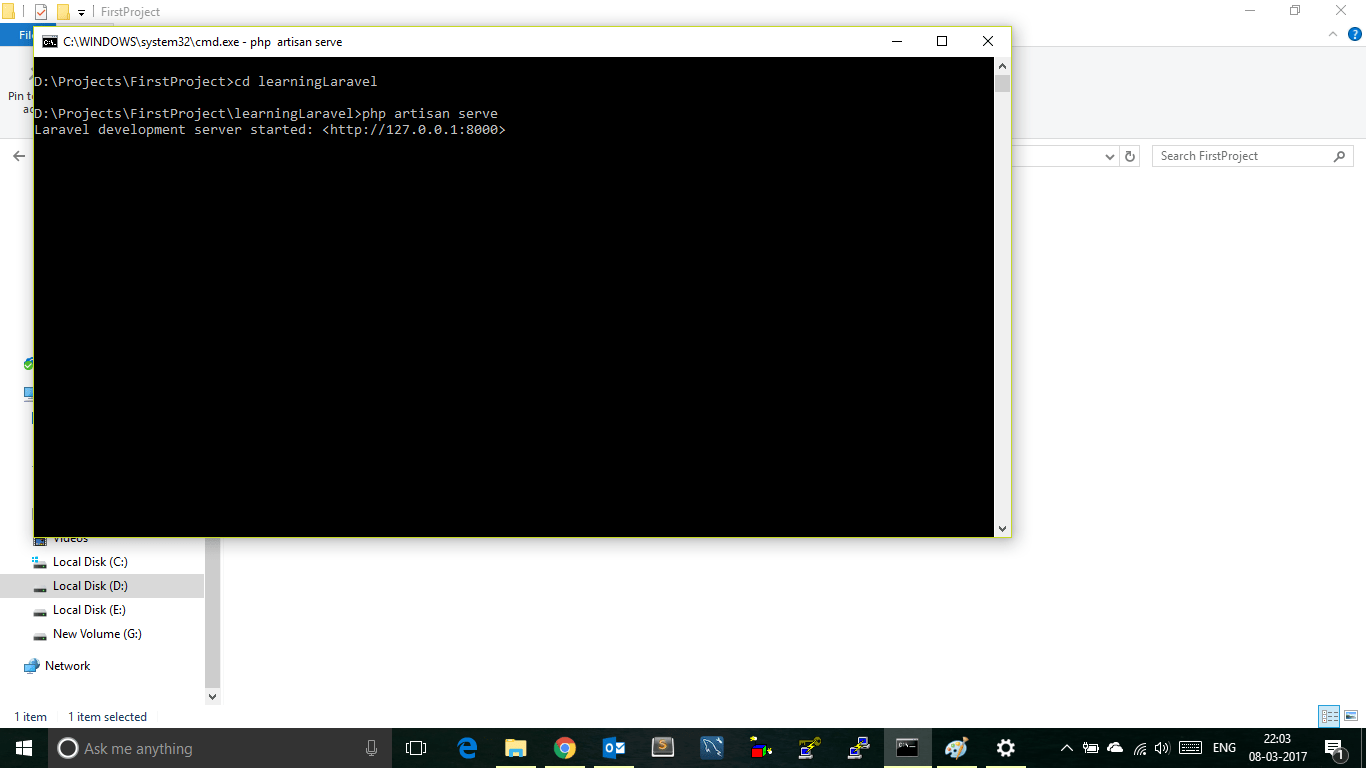
- If your project is successfully installed and running then go to the browser and type in address field localhost:8000
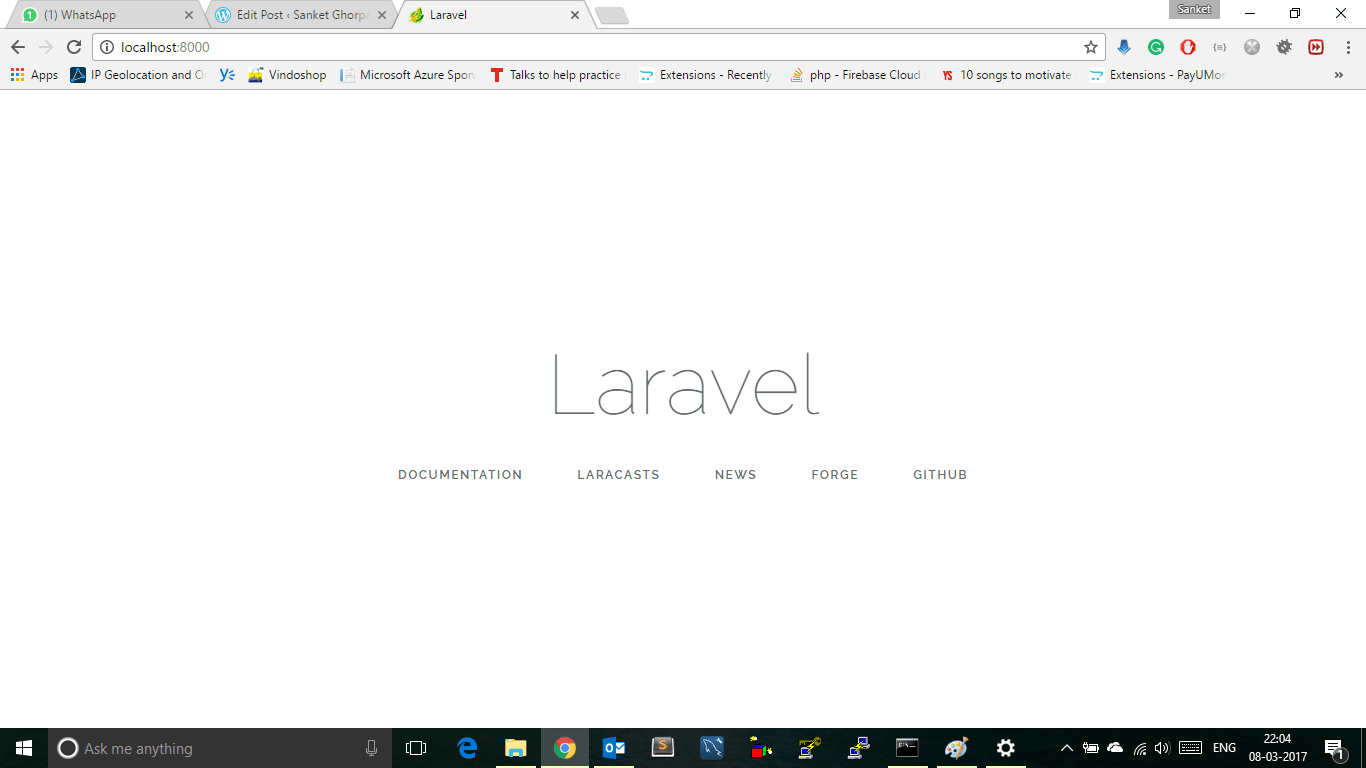
- If you are able to see the above image then you have successfully installed Laravel and have created a project.
If you face any issues while installing Laravel, drop a comment and I will help you out. Happy Laravel Development. If you like this article please share with your friends 🙂


 Sanket Ghorpade
Leave a comment